Unity URP rendering
Do not optimize draw calls with five-year-old batching advice.
Unity 6 gives URP several rendering paths. Measure the scene, keep material variation under control, and choose the method that matches your pipeline settings instead of stacking every batching checkbox.
A draw call is not just a mesh count problem.
Unity’s current documentation describes draw-call optimization as reducing how often the CPU prepares and sends rendering work to the GPU. The first step is to confirm that draw-call overhead is actually hurting the frame with the Rendering Profiler or Frame Debugger.
For current URP projects, Unity’s method-selection guide recommends SRP Batcher and GPU Resident Drawer paths rather than treating static and dynamic batching as universal answers.
Draw-call workflow
Fix the cause in this order
The cleanest scene often comes from fewer material states before it comes from more aggressive mesh combination.
Verify CPU rendering pressure
Check draw calls, batches, SetPass calls, and frame timing. Do not optimize a healthy metric while the GPU or scripts are the real problem.
Consolidate avoidable materials
Objects that could share the same material should not differ only because of duplicated material assets or tiny texture variations.
Keep shader variants compatible
The SRP Batcher reduces render-state setup when objects use compatible shader variants. Random shader changes can break the sequence.
Use GPU-driven paths for repeated geometry
GPU Resident Drawer and instancing approaches are useful when the scene contains many compatible repeated objects.
Inspect the result in Frame Debugger
Confirm that the objects you expected to render together are actually using the path you planned.
Atlas workflow
A cohesive material setup removes avoidable variation before runtime
This does not magically reduce every draw call to one, but it gives Unity a much cleaner rendering problem. It also makes the scene easier to inspect because material changes correspond to real visual needs instead of asset-management noise.
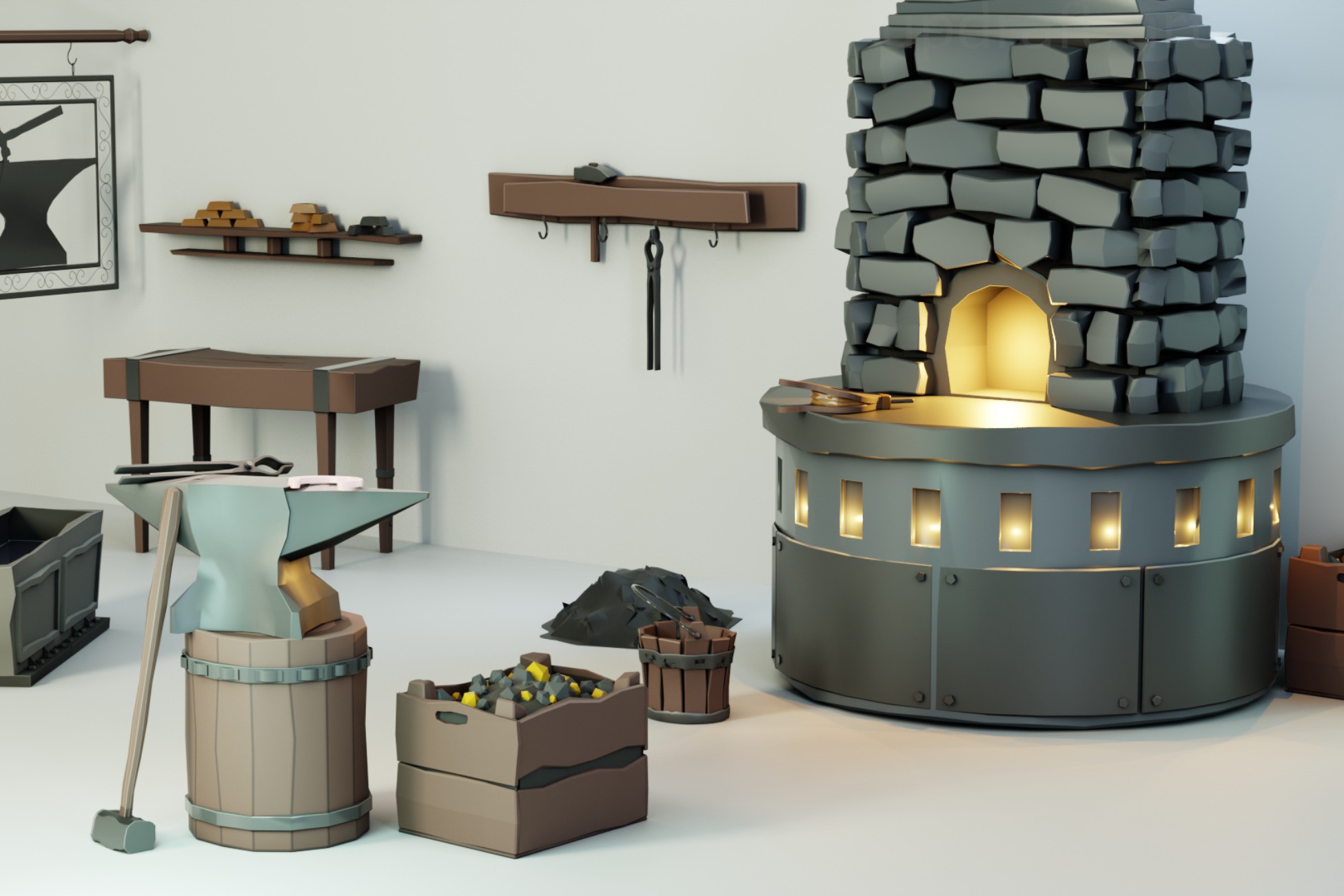
The Blacksmith pack uses one atlas and one material across the set, so adding more workshop props does not require a new material for each object.
Repeated environment pieces
Reuse the same rendering vocabulary across a larger scene
When you need variation, change placement, silhouette, grouping, and surrounding props before creating another nearly identical material. Unity specifically recommends using the same materials across GameObjects where possible.
Buildings and dock pieces can vary spatially while staying inside one compact material system.
Low-friction asset setups
Packs with compact material workflows
Stylized Blacksmith Props Pack
Twenty meshes and twenty-four prefabs built around one atlas material.
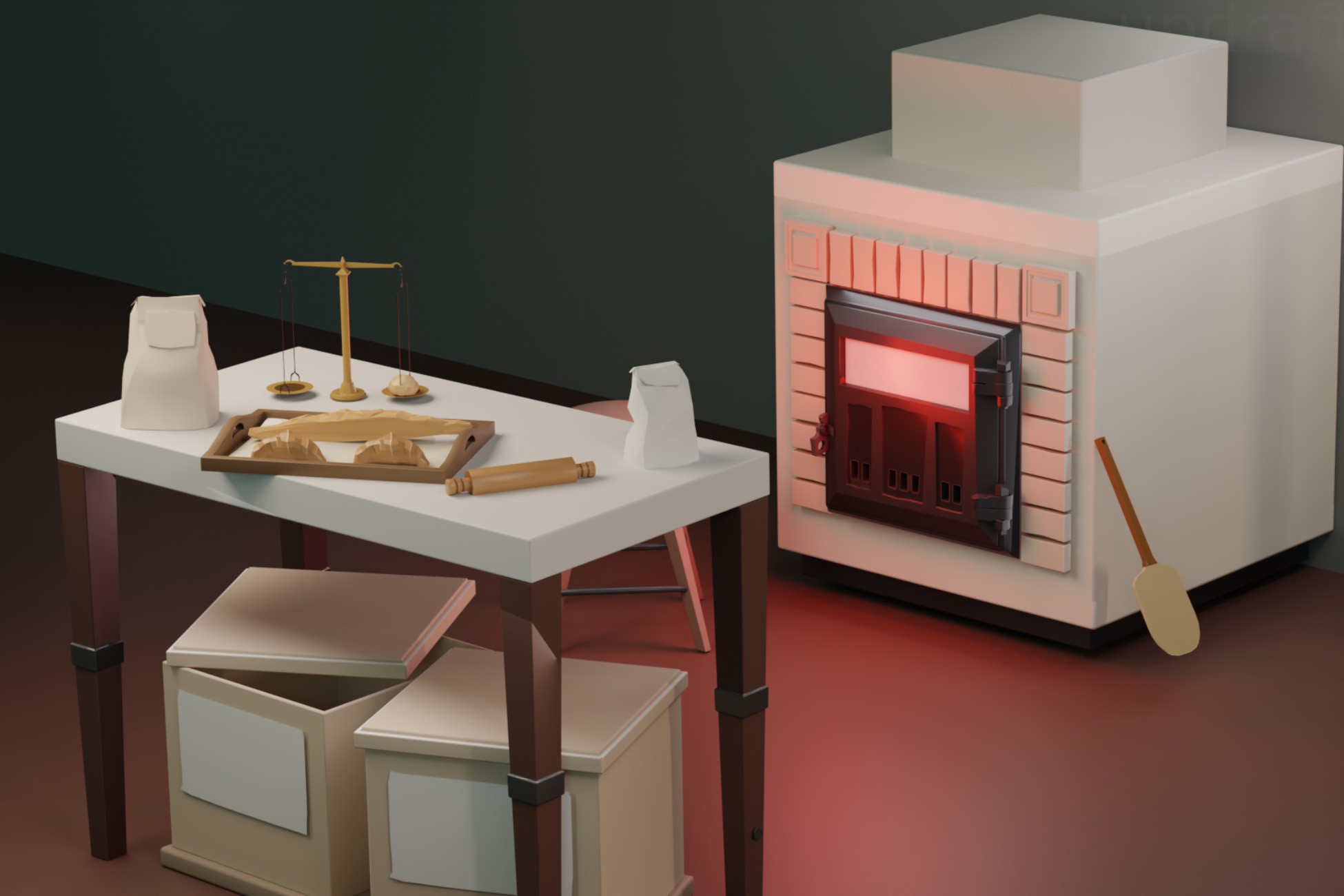
Stylized Bakery Props – Bread, Pastry & Medieval Shop Assets
Twenty-seven prefabs and twenty-two meshes using one shared atlas material.
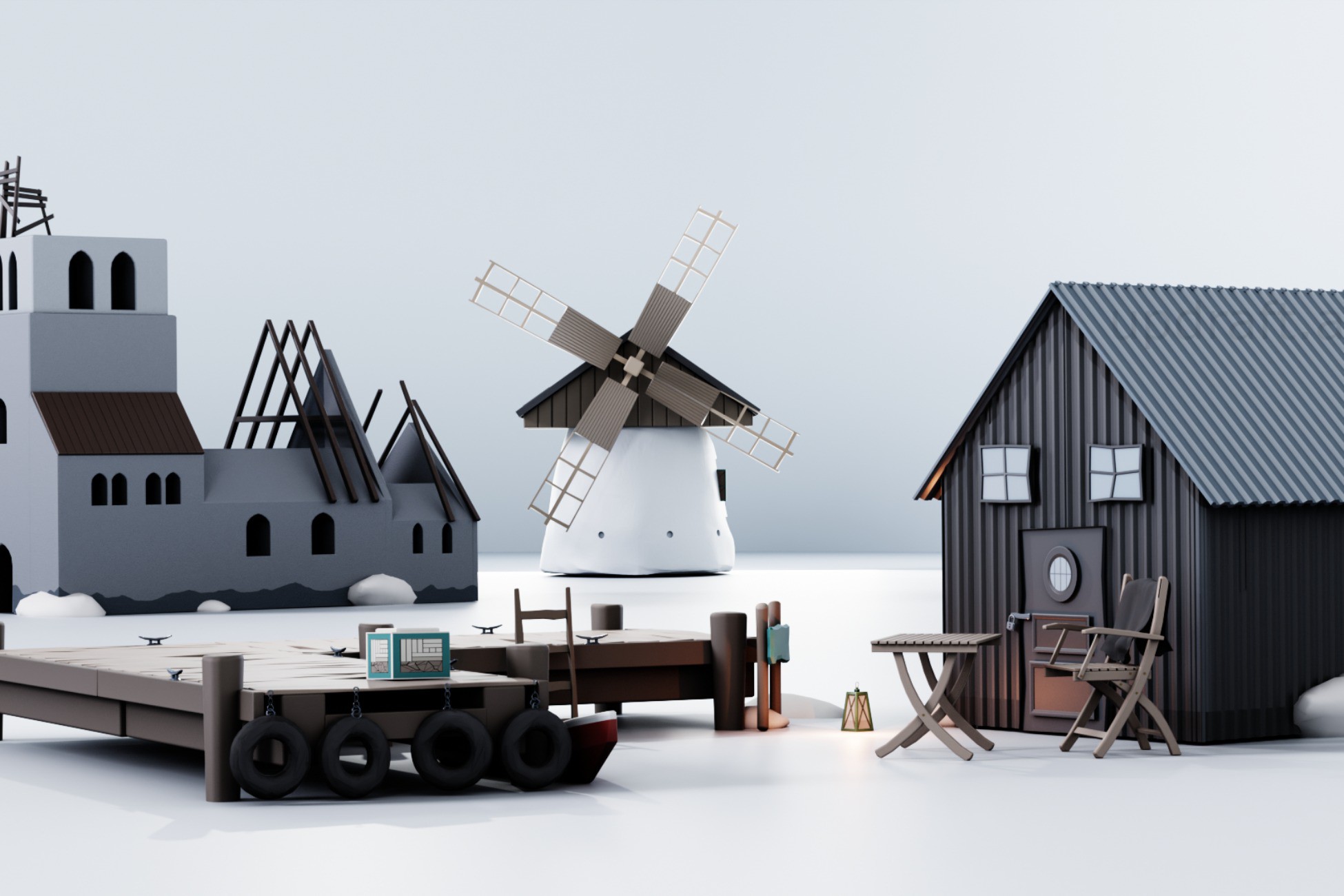
Stylized Viking Coast Village Kit
A compact exterior kit with one material and modular repeated environment pieces.